
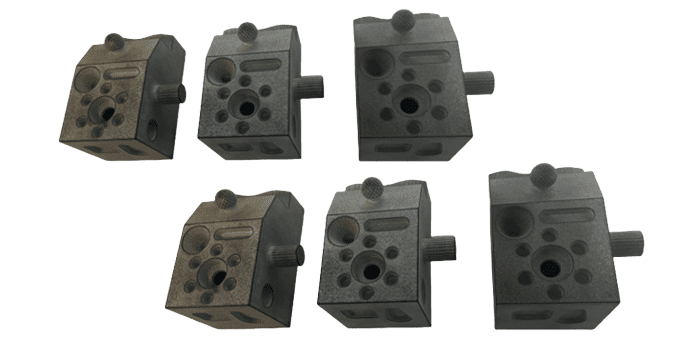
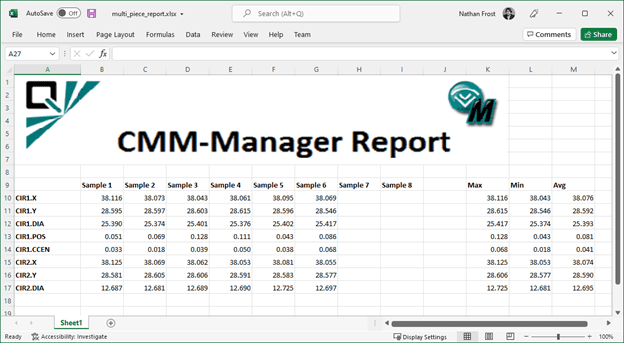
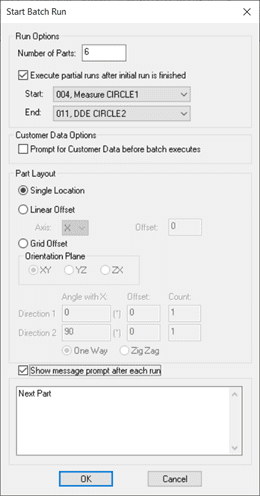
Create multi-piece inspection reports quickly using the built-in DDE (Dynamic Data Export) operation. Open a Microsoft Excel spreadsheet and select the cells you want to populate with specific report data. Each time the program runs, CMM-Manager automatically sends the inspection results to Excel in the format you defined. You can choose to overwrite existing sample data or offset new results by row or column. When combined with Batch Run, users can define the layout and number of parts to inspect and then let the machine run the entire sequence unattended.
DDE Highlights
- Powerful tool that allows you to control the export of report data to Microsoft Excel uniquely for multi-piece inspection
- Unlike saving the entire report to Excel, DDE exports just the data in any layout you specify
- Choose Feature Name, Report Characteristics, Report Header Fields, and more for DDE export
- Overwrite report data each time or increment by row / column
- CMM-Manager Tutorial – Dynamic Data Export (DDE) Report
Batch Run Highlights
- Allows user to control how many times the program executes
- Options for static part location or user defined multi-piece grid layout for unattended operation
- CMM-Manager Tutorial – Using Batch Run
Other Reporting Tools in CMM-Manager
Create text and graphical report document using intuitive dimensioning and GD&T tools. After measurement, simply pick feature, assign tolerance, then drag-n-drop to place dimension in report document. Create graphical report views that display CAD, drawing, or actual part view along with report annotations for a visually compelling report document. Customize report header by adding images, and user prompted info such as serial or lot number. View, Print, or Save the report document automatically after inspection program execution.